# Import Kontak Secara Manual

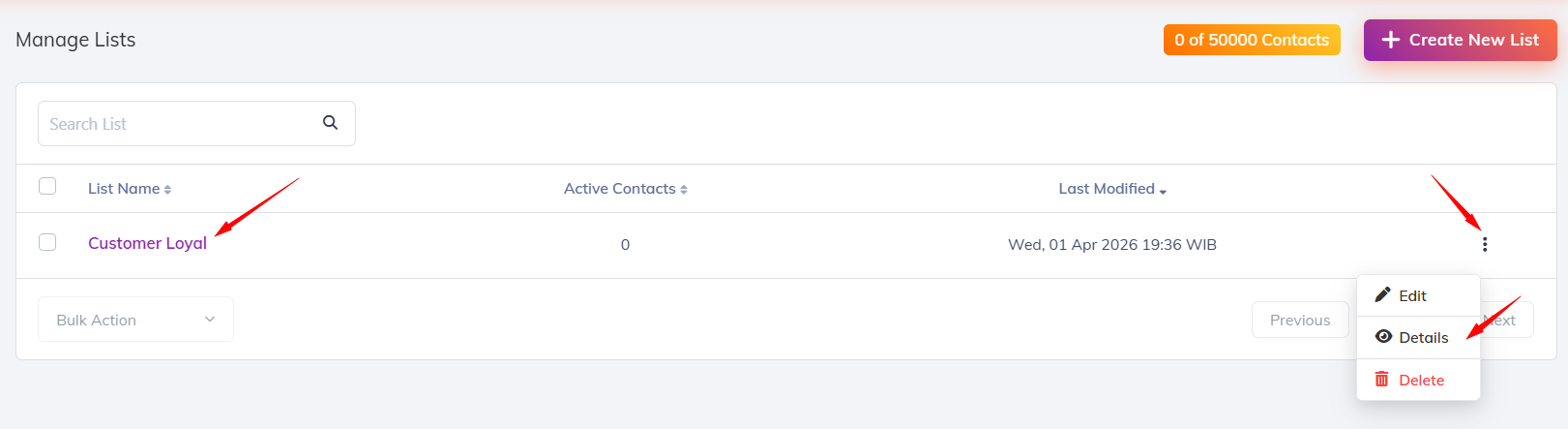
Sebelum import kontak secara manual, pastikan Kamu **mengunjungi menu List** dan sudah [**membuat List**](https://docs.watzap.id/help/list/membuat-list-baru) nya. Jika sudah membuat list, **klik nama list** atau klik **icon titik tiga (:)** dan pilih yang **Details**.

<figure><img src="https://4182233851-files.gitbook.io/~/files/v0/b/gitbook-x-prod.appspot.com/o/spaces%2F5hxDGBLGZN4N69IP4zHp%2Fuploads%2FBY6sqFKRK7eygql8P45c%2Fimage.png?alt=media&#x26;token=2eb7e7ce-3771-4eda-91cd-d4147f4c4cb8" alt=""><figcaption></figcaption></figure>

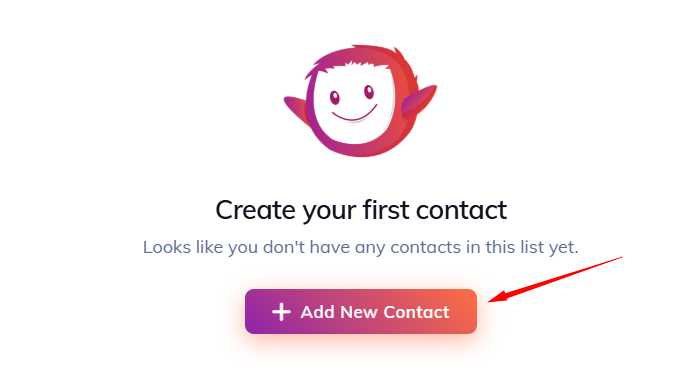
Lalu klik tombol **Add New Contact.**

<figure><img src="https://4182233851-files.gitbook.io/~/files/v0/b/gitbook-x-prod.appspot.com/o/spaces%2F5hxDGBLGZN4N69IP4zHp%2Fuploads%2Fk2jv46PZmloUF4Y3hC59%2Fimage.png?alt=media&#x26;token=ccb7c92f-d87a-48a1-a6a6-8af0d1530c44" alt=""><figcaption></figcaption></figure>

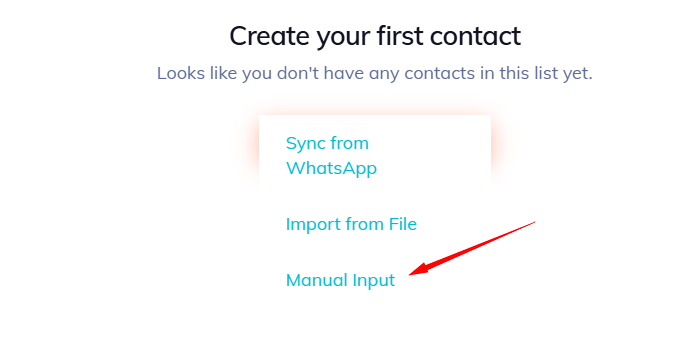
Pilih yang **Manual Input**.

<figure><img src="https://4182233851-files.gitbook.io/~/files/v0/b/gitbook-x-prod.appspot.com/o/spaces%2F5hxDGBLGZN4N69IP4zHp%2Fuploads%2FVnoA437GbxghkEz4nr6E%2Fimage.png?alt=media&#x26;token=650d1fd6-d003-46fe-a0e9-363c0b2ff964" alt=""><figcaption></figcaption></figure>

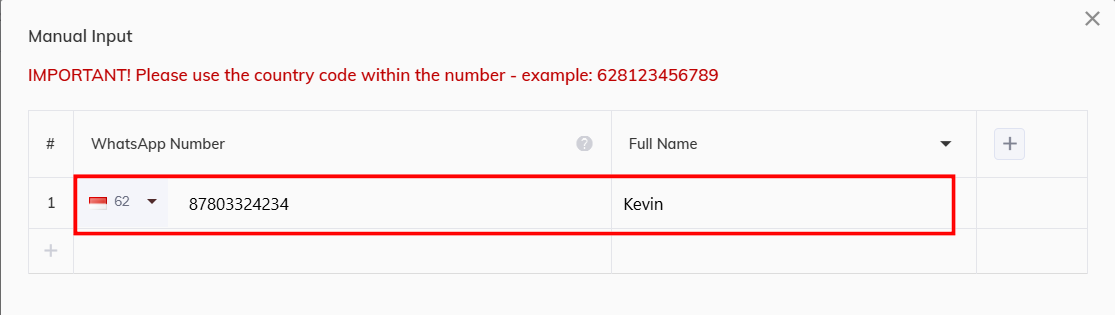
Kemudian, masukkan nama dan nomor WhatsApp.

<figure><img src="https://4182233851-files.gitbook.io/~/files/v0/b/gitbook-x-prod.appspot.com/o/spaces%2F5hxDGBLGZN4N69IP4zHp%2Fuploads%2F4yY2KRQzHmdZciAt0Fne%2Fimage.png?alt=media&#x26;token=96511351-0086-4a3e-9d0c-3af72950bf64" alt=""><figcaption></figcaption></figure>

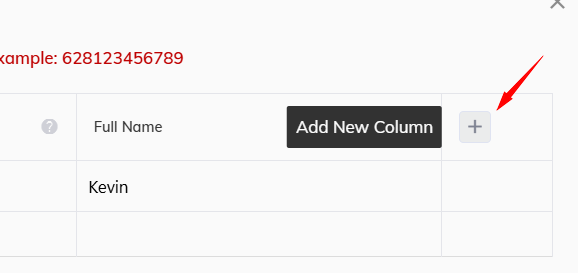
Jika ingin menambahkan **kolom baru**, kamu bisa **klik icon +** ini.

<figure><img src="https://4182233851-files.gitbook.io/~/files/v0/b/gitbook-x-prod.appspot.com/o/spaces%2F5hxDGBLGZN4N69IP4zHp%2Fuploads%2Fgw4w2EPGWC4PwOLDMXYe%2Fimage.png?alt=media&#x26;token=e87ae80e-60ab-4f65-addc-36feaa4aca59" alt=""><figcaption></figcaption></figure>

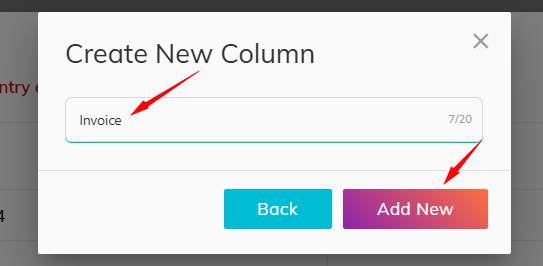
Lalu berikan nama kolom nya dan klik tombol **Add New**.

<figure><img src="https://4182233851-files.gitbook.io/~/files/v0/b/gitbook-x-prod.appspot.com/o/spaces%2F5hxDGBLGZN4N69IP4zHp%2Fuploads%2FYwVQevmw9mCyU1he7y4o%2Fimage.png?alt=media&#x26;token=b9e023f7-8ab4-4ac3-8262-1f8522e9997e" alt=""><figcaption></figcaption></figure>

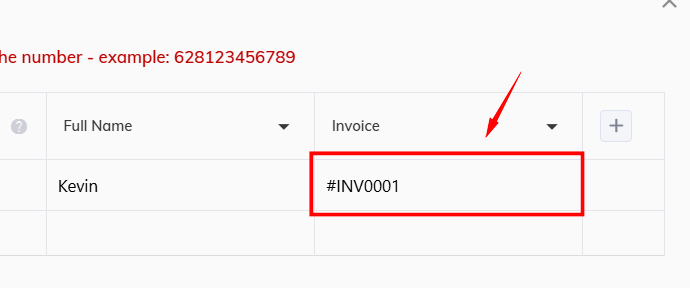
Kemudian, isi baris di kolom tersebut. Sekadar informasi, Kamu bisa membuat hingga maksimal 8 kolom.

<figure><img src="https://4182233851-files.gitbook.io/~/files/v0/b/gitbook-x-prod.appspot.com/o/spaces%2F5hxDGBLGZN4N69IP4zHp%2Fuploads%2FZmlEGNtYbSzsvdhTUqFG%2Fimage.png?alt=media&#x26;token=198ba22e-ec0e-4b03-900d-b6e803134b5a" alt=""><figcaption></figcaption></figure>

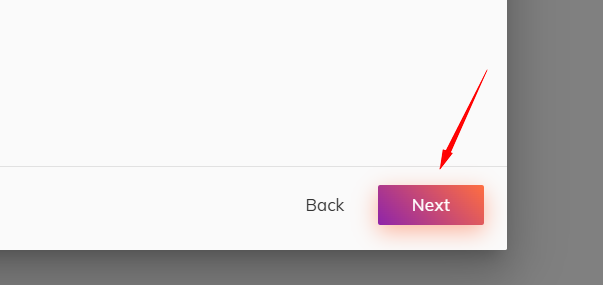
Jika sudah selesai setting kolom dan isi barisnya, Kamu bisa langsung klik tombol **Next**.

<figure><img src="https://4182233851-files.gitbook.io/~/files/v0/b/gitbook-x-prod.appspot.com/o/spaces%2F5hxDGBLGZN4N69IP4zHp%2Fuploads%2Fr0CCsFjoVE0V2JIqdWDQ%2Fimage.png?alt=media&#x26;token=7234ba79-705a-48e7-aa41-0c1d33191f4c" alt=""><figcaption></figcaption></figure>

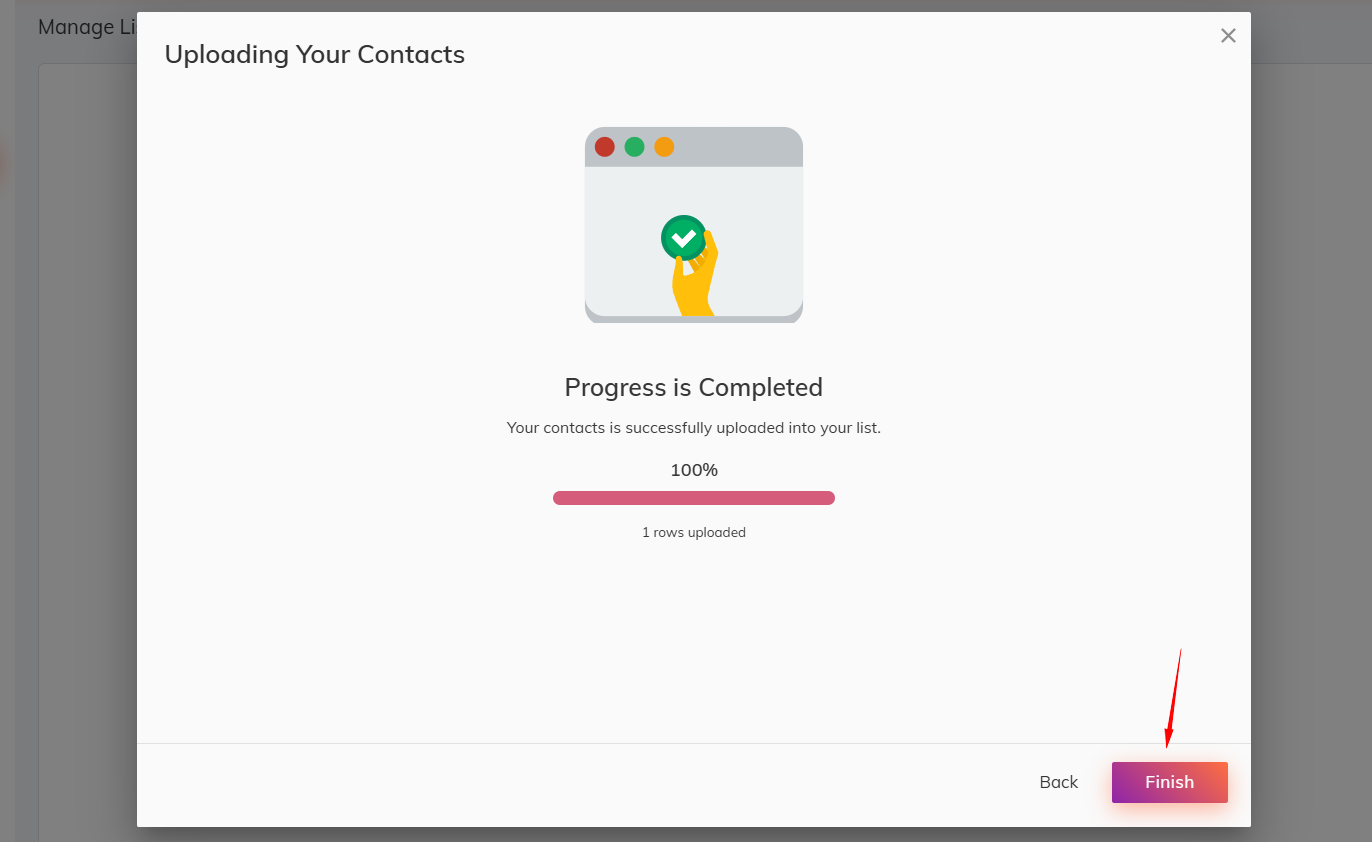
Klik tombol **Finish**.

<figure><img src="https://4182233851-files.gitbook.io/~/files/v0/b/gitbook-x-prod.appspot.com/o/spaces%2F5hxDGBLGZN4N69IP4zHp%2Fuploads%2F0xaPYsWVnlwCPSadBKLz%2Fimage.png?alt=media&#x26;token=a17ce6ef-f3c9-4fac-a5e5-f78b76fe3be9" alt=""><figcaption></figcaption></figure>

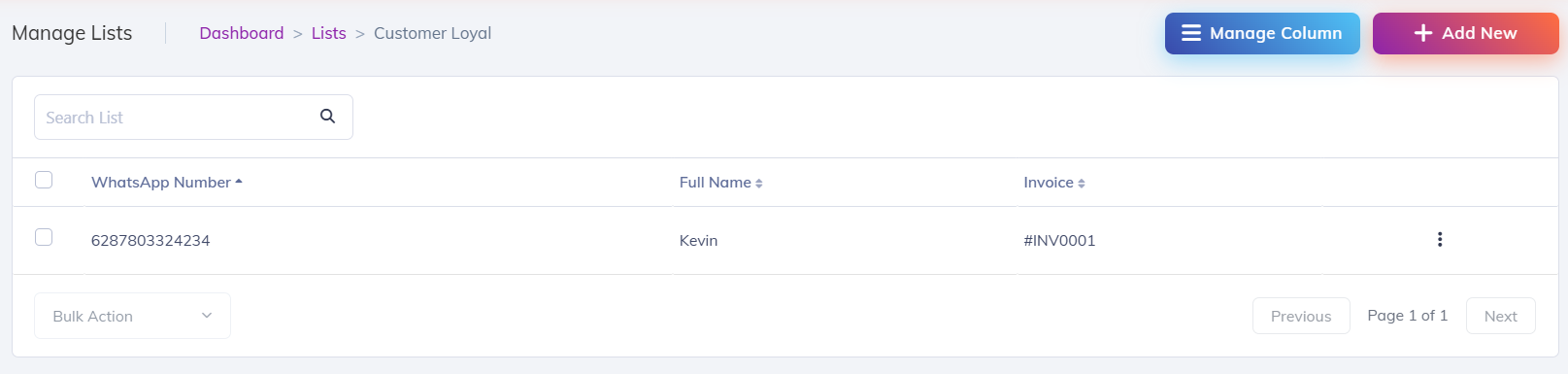
Maka akan muncul tampilan seperti ini.

<figure><img src="https://4182233851-files.gitbook.io/~/files/v0/b/gitbook-x-prod.appspot.com/o/spaces%2F5hxDGBLGZN4N69IP4zHp%2Fuploads%2FonM4yUTlnubOPylAGbgY%2Fimage.png?alt=media&#x26;token=7393bc2e-9cff-40c8-97b5-2683656ed9a4" alt=""><figcaption></figcaption></figure>

Selesai.